One button when the road goes wrong.
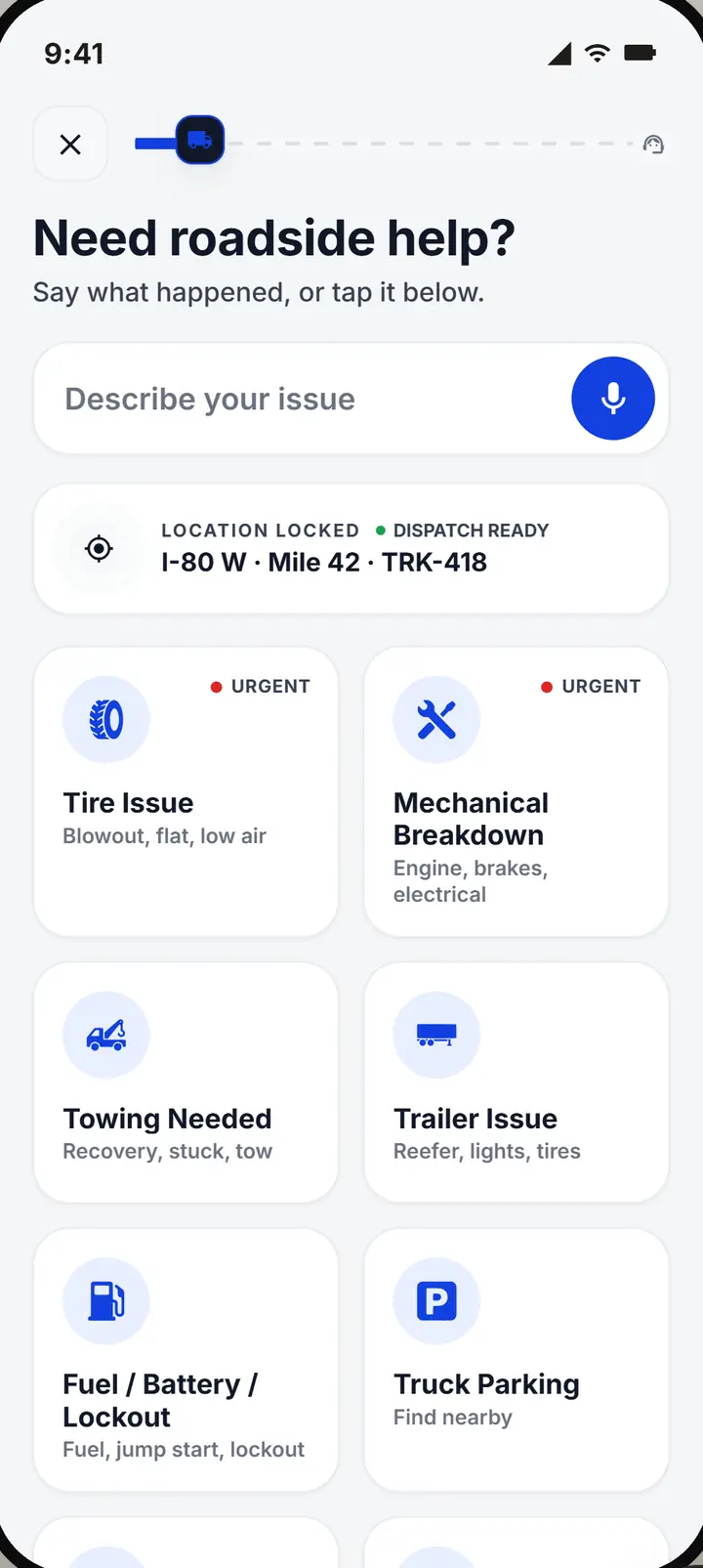
Tap Need help, say what happened, and your dispatcher gets your location, your truck and the problem. Then your phone tells you exactly what happens next.
- Free for company driversyour company's plan covers you
- On your iPhonenothing to install in the cab
- No tracking in the backgroundlocation only while the app is open
Less time on hold. Always the next step.
Stuck on the shoulder, two ways.
The usual way
- You call the office and wait for someone to answer.
- You explain where you are, then explain it again.
- You wait without knowing who is coming or when.
- You call back to ask if anyone is on the way.
- You keep the receipt and hope it gets paid back.
With Upways
- You tap Need help. Your spot and your truck go with it.
- Your dispatcher sees exactly where the truck is.
- Your phone shows who is coming and a countdown.
- Each step you tap tells the office for you.
- You snap the receipt. If you paid, it shows as owed to you.
From stopped to rolling again.
What a breakdown looks like from the driver's seat.
Step 1: Tap Need help
Tap what fits or say it. Your location and your truck go with it.
Step 2: Help is sent
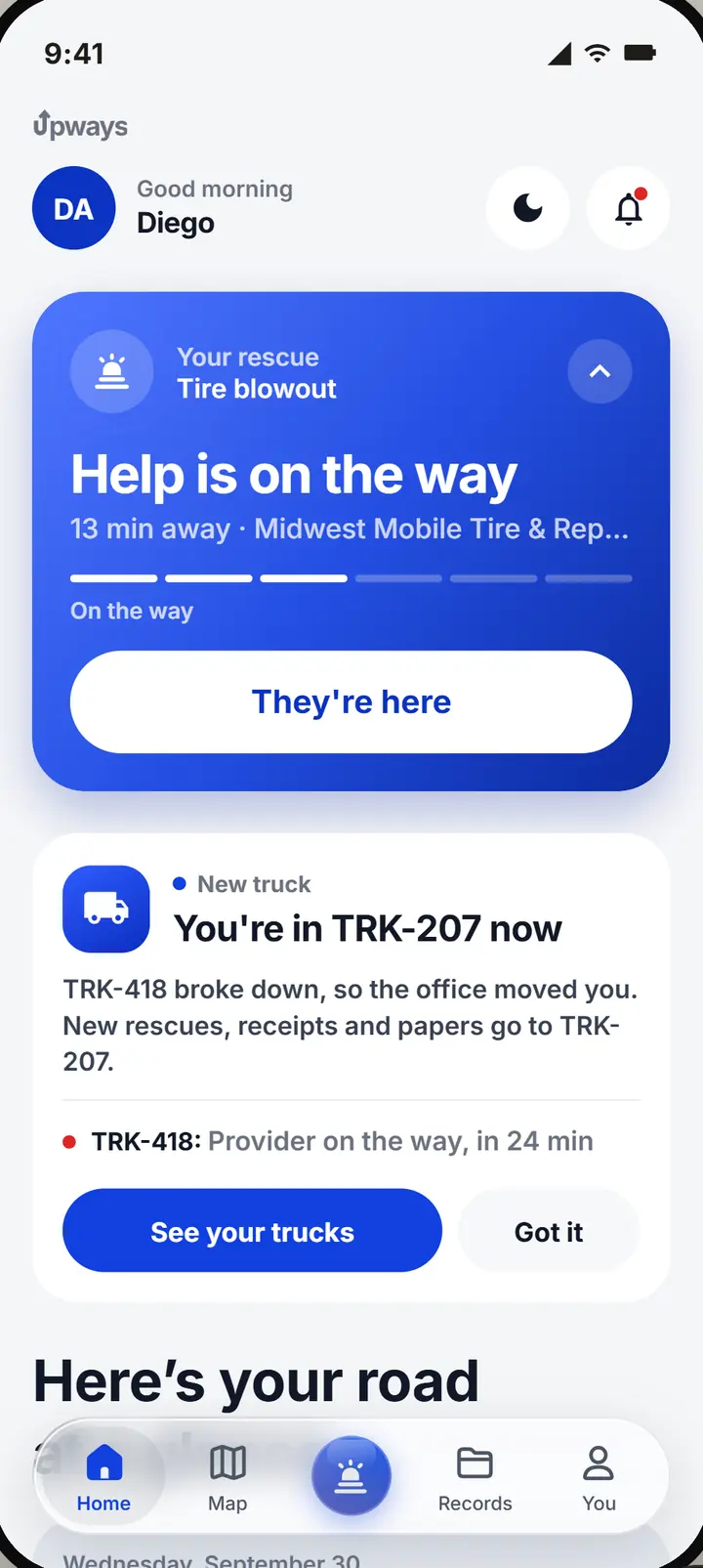
Your dispatcher calls the shop and sends it. Your home screen shows who is coming.
Step 3: Watch them come
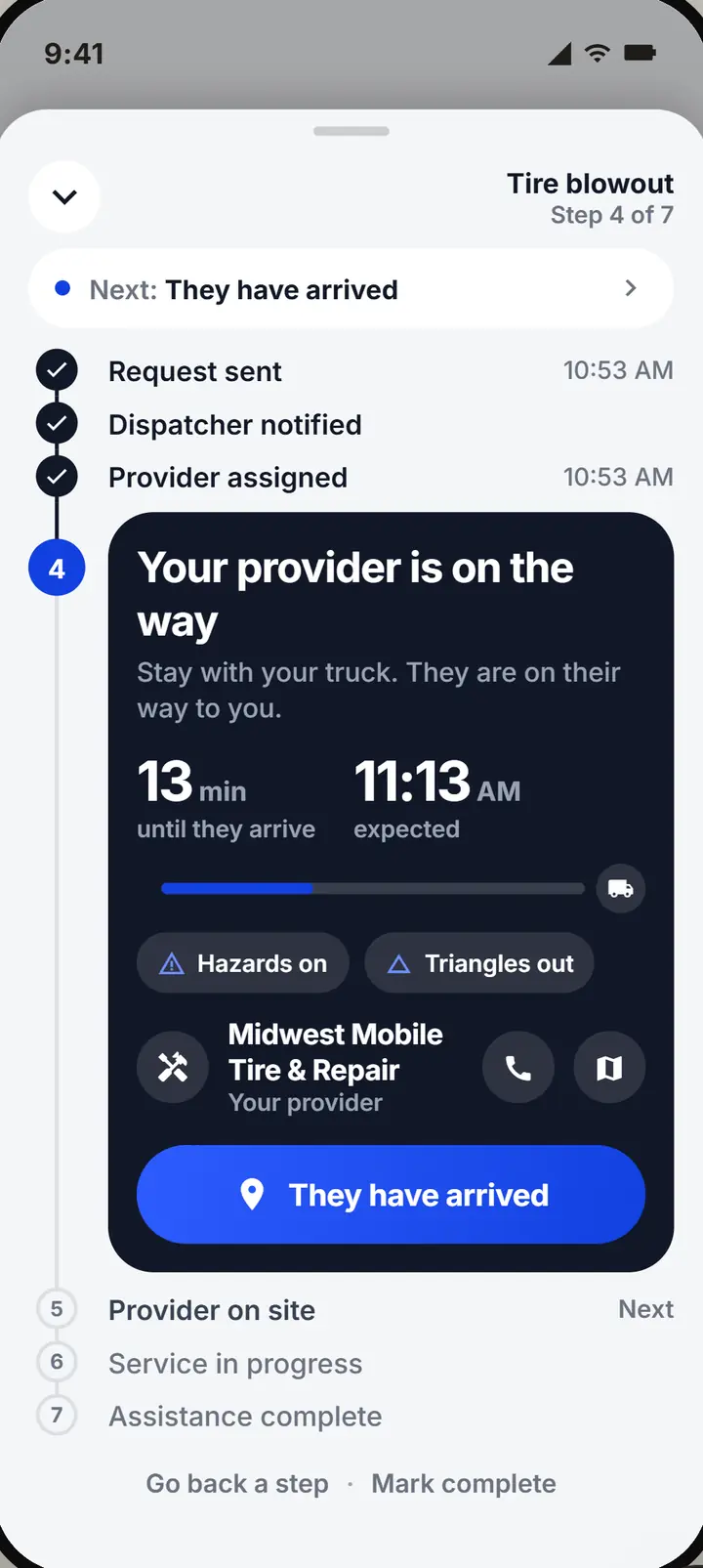
A countdown to when they get there, and whether to stay put or drive in.
Step 4: Back on the road
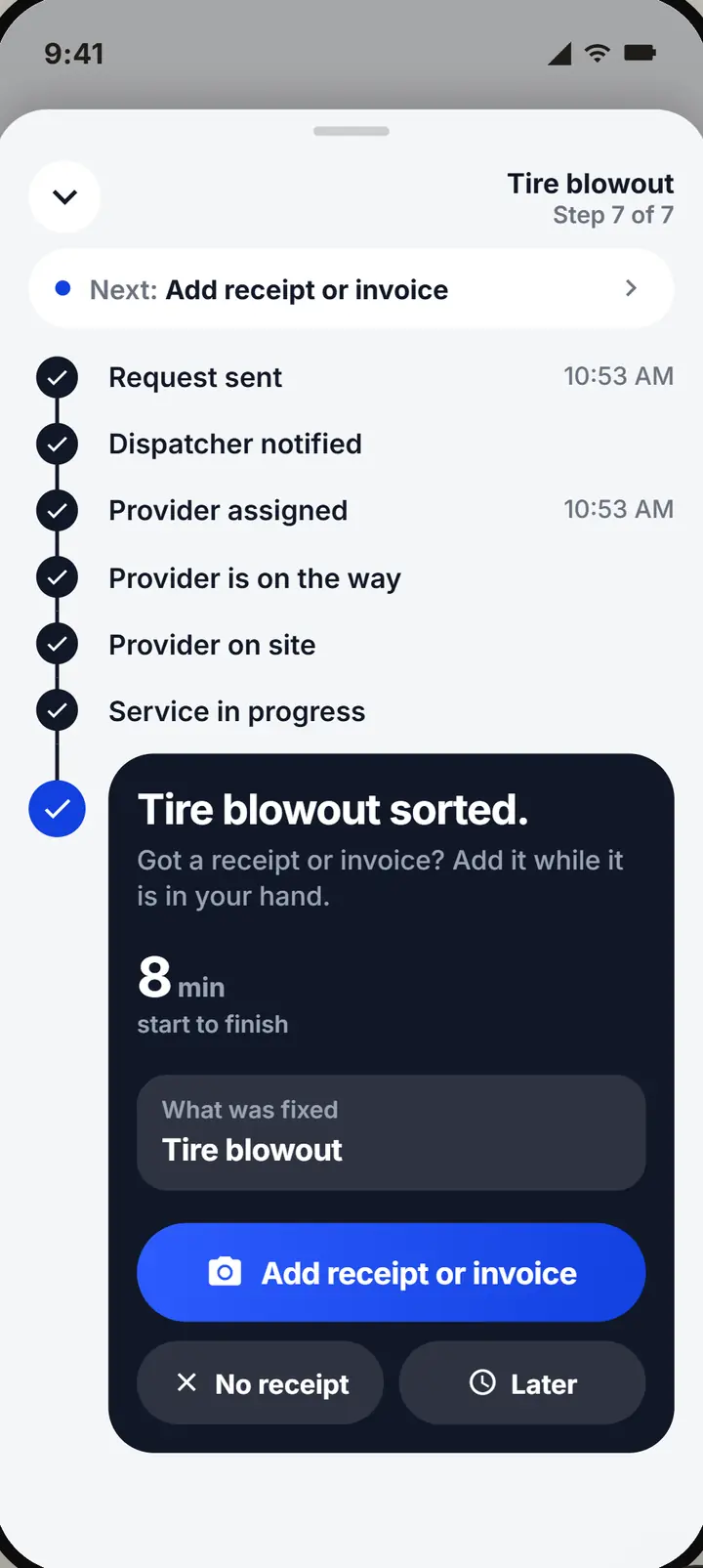
Mark it complete when the work is done. If you paid, snap the receipt.
Everything on the phone you already carry.
Help, the next step and your receipts, without a call to the office.
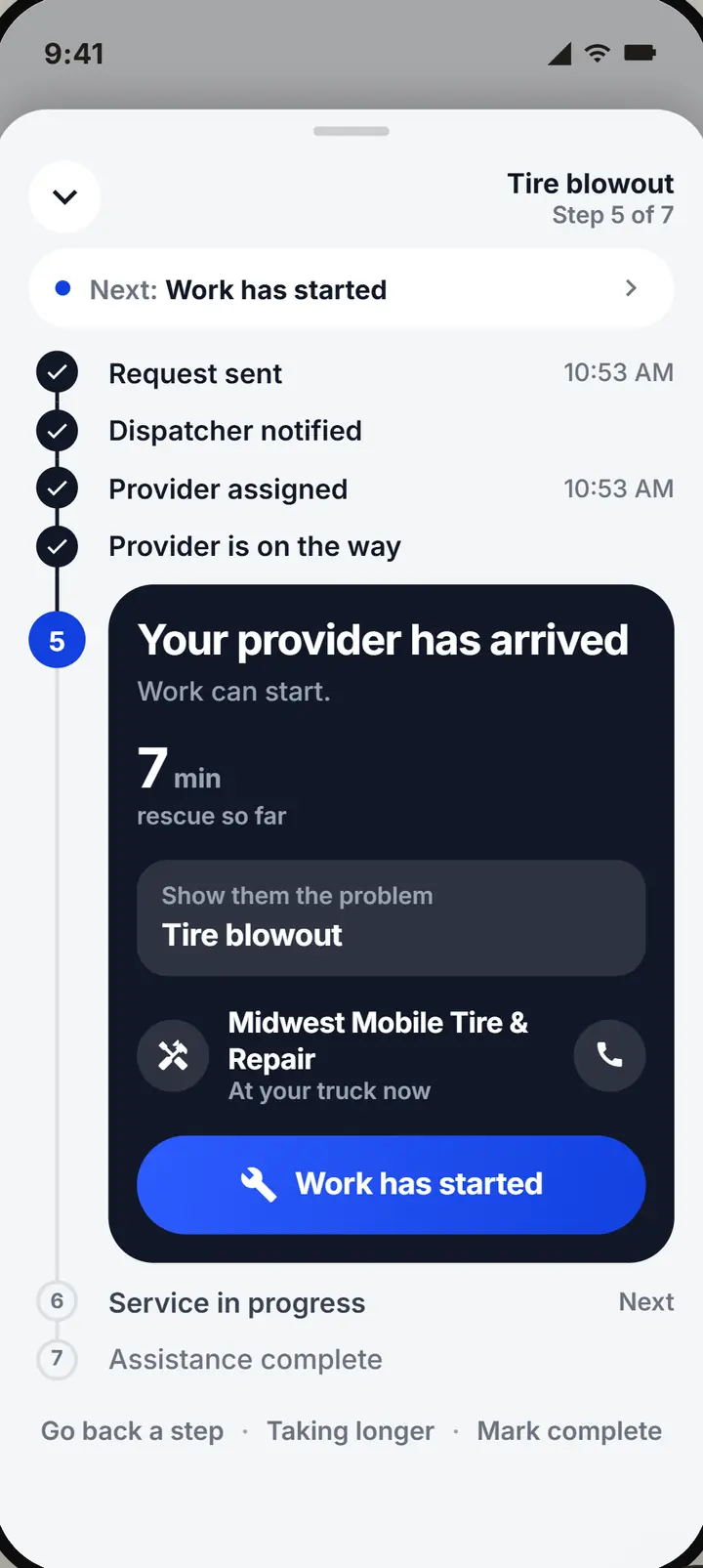
Always know what happens next.
The screen says what to do now, who is coming, and when they get there.
- Stay or drive in. The screen says which one.
- One tap per step. They arrived, work started: dispatch hears it from you.
- Call from the rescue. The shop's number is one tap away.
- On your lock screen. Who is coming and the countdown, without opening the app.
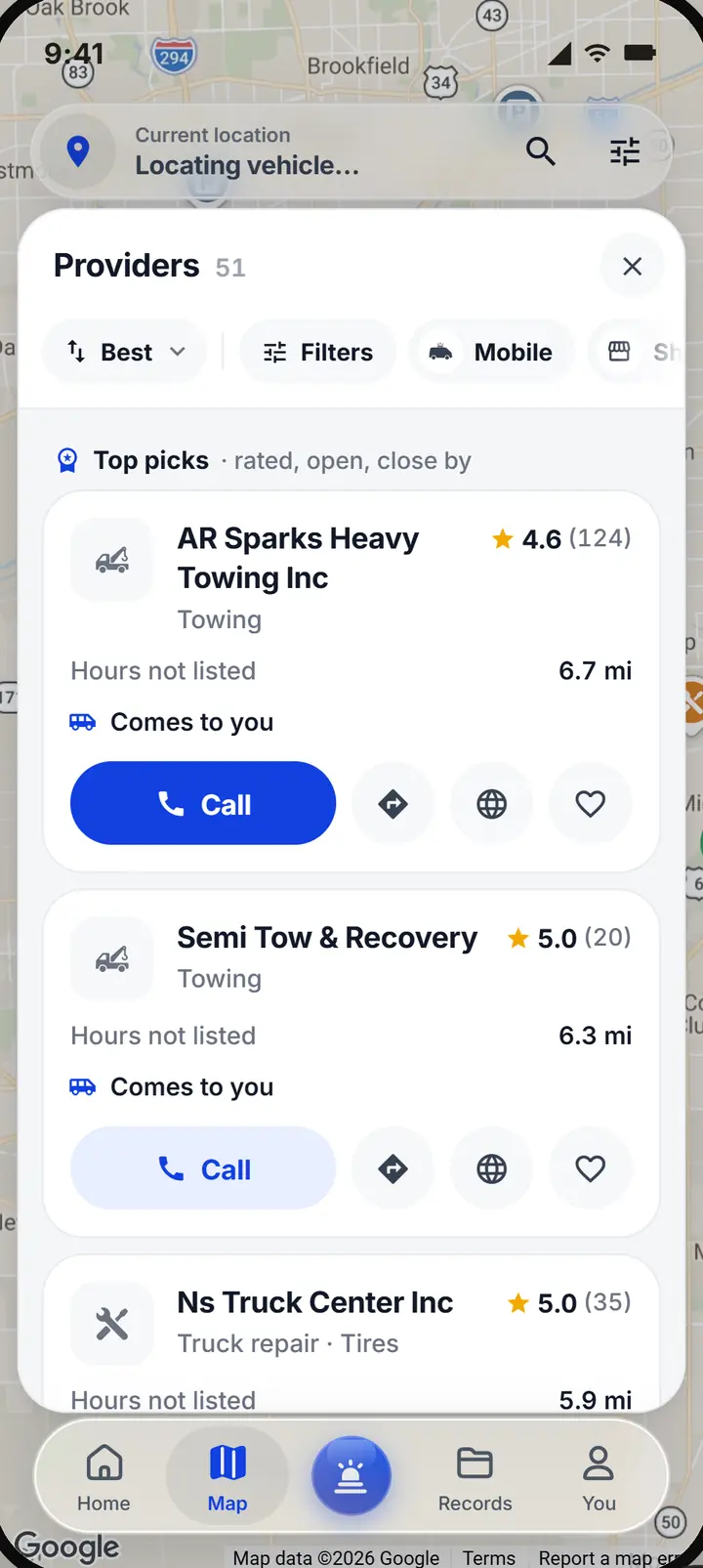
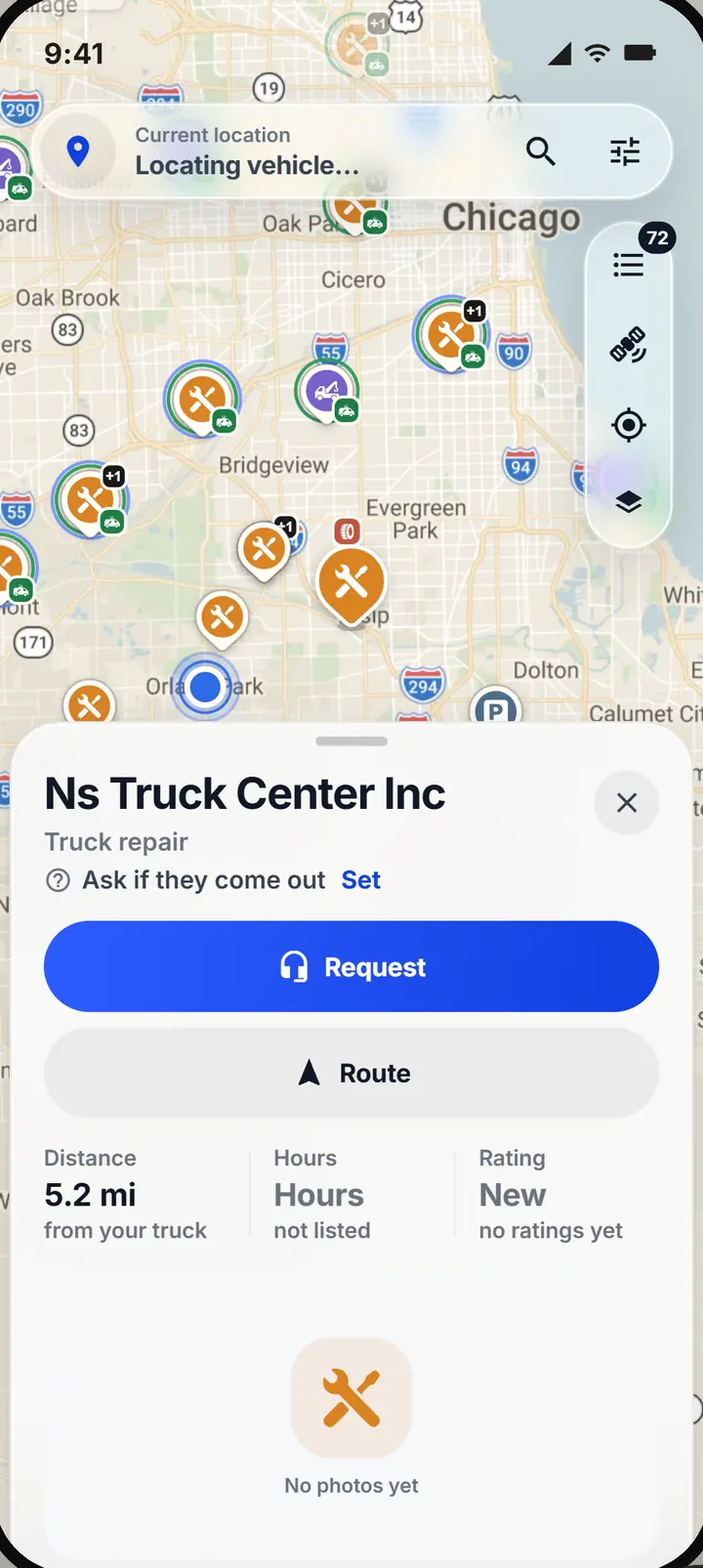
Find a truck shop yourself.
Truck shops, tire services and towing near you, rated and made for trucks.
- Comes to you? Each one says so, or tells you to ask on the call.
- Your company sees it. Choose one and it shows up like any other rescue.
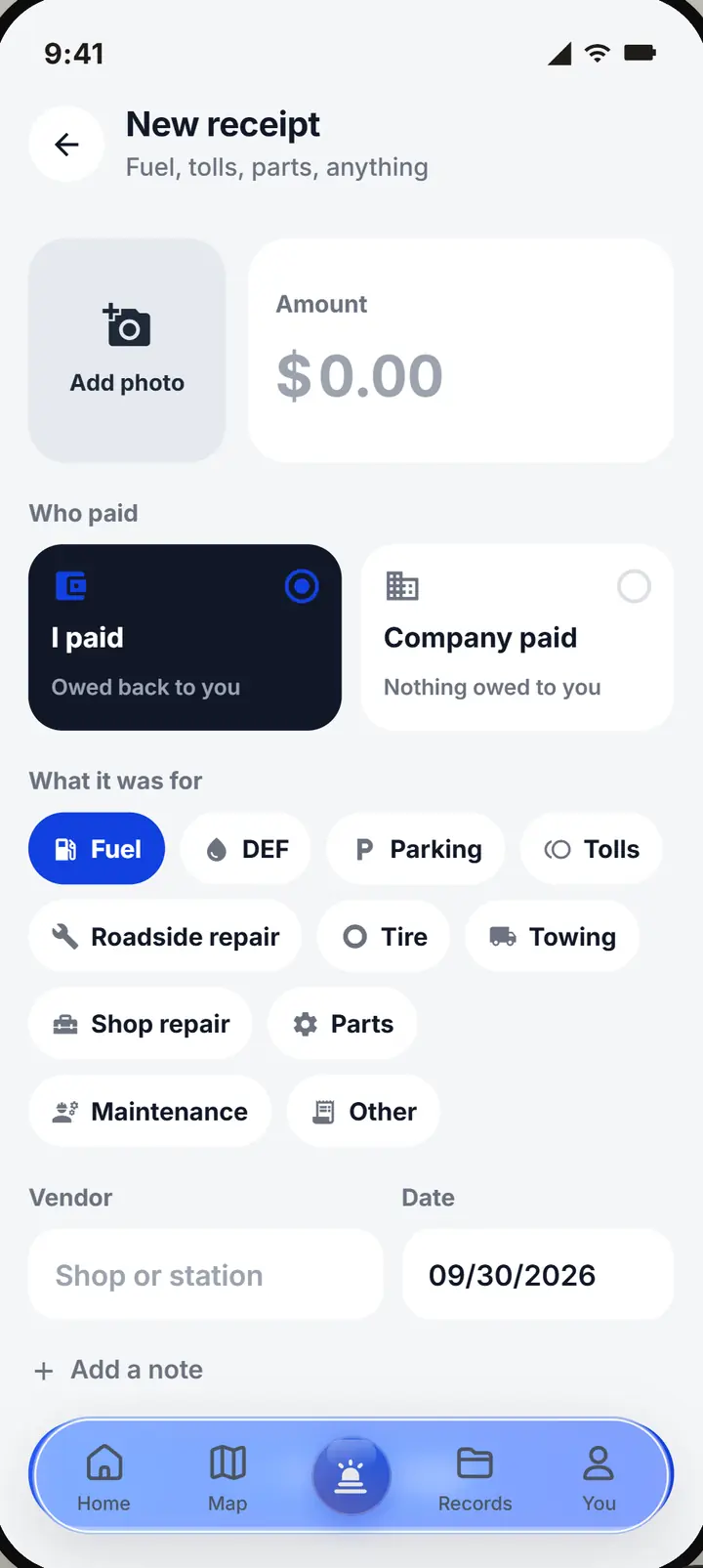
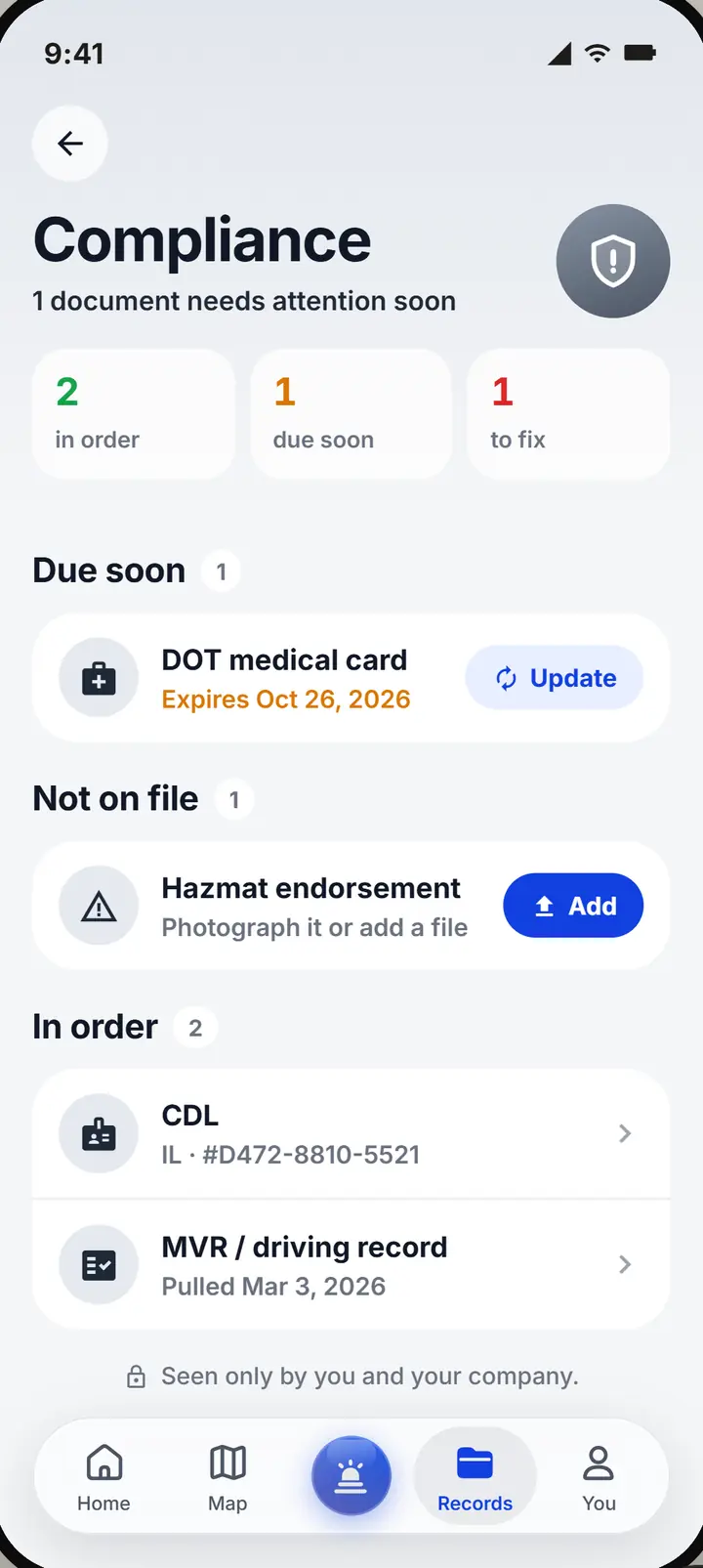
Receipts, accidents and documents, from the cab.
The receipts and reports of a breakdown, done in the minutes after it.
- Receipts. Snap it and say who paid. If you paid, it shows as owed to you until you are paid back.
- Accidents. Start a report in the first minutes. Call 911 comes first.
- Your documents. Your CDL and medical card warn you before they lapse.
What you need to know.
How to join, and what the app does with your location.
Joining your fleet
- Ask your dispatcher for the invitation: a link, an email or a company code
- Install Upways on your iPhone and sign in
- Enter the code and you are in your fleet
- Your company's plan covers you; there is nothing to pay
Location and privacy
- Used only while the app is open
- To find services near you, and to show your dispatcher where the truck is
- Never tracked in the background
- Not kept as a history of where you have been
Good to know
- Need help goes to your dispatcher; it never calls emergency services
- The accident screen puts Call 911 first
- If the office moves you to another truck, your home screen says so
- Directions open in Apple Maps or Google Maps, which do not route for truck height or weight
Upways Freight, our TMS
Loads, dispatch and driver pay, in the same place as your rescues. One system for the truck and the freight on it. Everything you use today stays as it is.
It is not open yet. Want to hear the day it is?
Email us to hear first- I drive for a company. How do I start?
- Ask your dispatcher for the invitation. Install the app, sign in, enter the code, and you are in your fleet. You do not need a plan of your own.
- Does Need help call anyone?
- It opens a rescue for your dispatcher with the problem, the truck and your location. Your dispatcher calls the shop. It never contacts emergency services.
- Can I pick my own shop?
- Yes. Open the map, call the shop and choose it. Your company sees the provider and the rescue the same way as one they sent.
- What does the app do with my location?
- While the app is open, it finds services nearby and shares the truck's latest position with your dispatcher. It does not track you in the background or keep a trail, and you can turn Location off in your phone's settings.
- Do I pay for the app?
- Not as a company driver: you join under your company's plan. Only owner operators running their own truck pay for a plan.
- Does a shop on the map come out to me?
- The listing says what is known: comes to you, shop only, or ask on the call. When nobody knows yet, it says so instead of guessing.
The next step, on the phone you already carry.
Ask your dispatcher for your fleet's code. Company not on Upways yet? Show them how it works. Running your own truck? There is an app for that.